
Pinia stores
The Stores tab is for inspecting Pinia stores registered in the app: name (id), state and getter field counts, and—after you select a row—a snapshot of state and getters that you can edit and write back where supported.
More on editing state and getters, and favorites for stores:
Top toolbar

Store search
The field placeholder is Search stores.... Active criteria come from Search by. The same checkboxes are the first block on Options → Pinia Store, under Search Settings: Search by store name, Search by key, Search by value. Defaults: name on; key and value off. A change applies to the open list immediately.
On Options → Pinia Store the blocks follow in this order: Search Settings, then Favorite Stores.
| Mode | What the list uses |
|---|---|
| Name | the displayed store name (baseId), in the panel |
| Key | field names in state and getters, asked from the page |
| Value | field values in state and getters, asked from the page |
A non-empty query keeps a store when any enabled mode matches. With all three off, the query matches nothing.
Minimum length applies to every mode. Default 2 characters and 300 ms debounce, from Options → General → Search Parameters (Update settings). A shorter non-empty query does not start a new search; the previous result stays until the field is cleared or the query reaches the minimum.
Key and Value also skip the page search below that length. The page walks state and getters to depth 20 and returns at most 100 stores. If that request fails, Key and Value match nothing; Name still filters in the panel.
Partial vs exact. If the query is not wrapped in quotes, matching is a substring (case-insensitive). Exact whole-string match applies when the entire query is wrapped in double quotes "...".
Status chips
Right side of Stores:
| Item | Purpose |
|---|---|
| N or N/M | N is visible stores. /M appears only when the search field is not empty and the counts differ. M is the last summary. |
| Favorites ★ | Visible favorites / saved total, or 0 when none are saved. Yellow when at least one visible row is a favorite. Click opens Options → Pinia Store → Favorite Stores. |
| Update | Refresh (disabled while a summary load runs) and the local time of the last successful summary, or Loading.... |
Before a summary, the panel pings the page. If that ping fails, nothing is requested: the list stays empty (No stores found) and there is no error overlay. A summary that never arrives shows Timeout: Pinia stores not found or not initialized after 3 seconds. A failed request shows Failed to load Pinia stores. Make sure Pinia is installed and initialized. The message covers the tab.
Work area
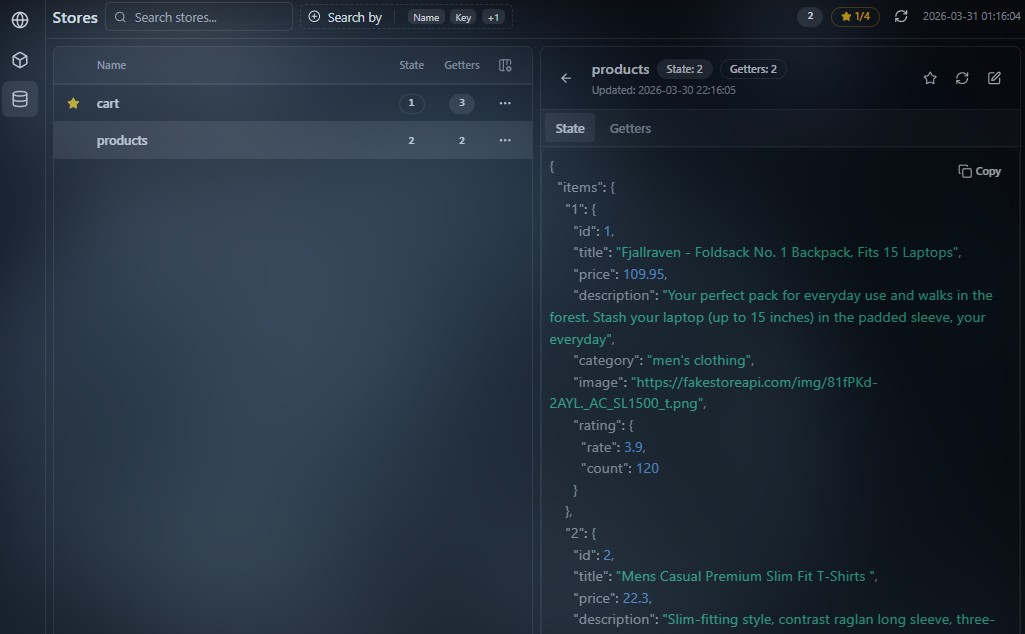
Store list
Left: the store table. Name is always shown. The column menu toggles State and Getters; both default to on. An empty list says No stores found.
- Name — displayed store name (
baseId), or Unknown Store when it is missing; - State — number of state keys, or — when the count is 0;
- Getters — number of getters, or — when the count is 0.
Any row opens the card. Favorite rows stay on top. The row menu is Ask AI and Add favorite / Remove favorite. The star on the row does the same favorite toggle. See Favorites.
Ask AI is always available. It loads the store from the page and attaches state and getters. If that read fails, a toast says Could not read the store {name}. Otherwise the AI tab opens with a chip above the input, for example Store cart: × removes it from the question. Type a question, or send the chip without one. When Logs has a change of this store, the attachment also names the latest one as #N. Values are masked by the AI settings and cut; with Values of store state, props, emits and actions off, the assistant gets only names and types.
Store details
Selecting a row opens the detail panel. With nothing selected it says Select a store to see details. Below 1000 px the card covers the list.
Summary header
The top of the panel shows:
- store name;
- State: N when the state count is above zero;
- Getters: N when the getter count is above zero;
- an Updated: line. While the first load runs it says
Loading.... After a successful read it is UTCYYYY-MM-DD HH:mm:ss(the toolbar clock is local).
Store data
Below that, tabs:
| Tab | Purpose |
|---|---|
| State | snapshot of reactive state; view and save changes |
| Getters | snapshot of current getter values in serialized form; view and limited editing depending on the scenario |
A tab is shown only when its count is above zero. The card opens on State when that count is above zero, otherwise on Getters. While the snapshot loads, the body says Loading store data.... A missing section says No state data or No getters data.
The active tab is shown as JSON—text or tree—according to inspector settings.
Navigation
- ← Back closes the card, including during edit;
- Esc in edit mode discards the draft and stays on the card;
- Esc outside edit mode closes the card.
Controls
| Control | Purpose |
|---|---|
| Star | add or remove the store from favorites. Tooltip: Add to favorites / Remove from favorites |
| Refresh | re-fetch this store. Tooltip Refresh data. Disabled while the card is loading. Hidden in edit mode |
| Edit | enter edit mode for the active tab. Tooltip Edit state or Edit getters |
Edit mode
Button order in view mode: Star → Refresh → Edit. After Edit, Refresh and Edit become Cancel and Save. Star stays.
| Before editing | In edit mode |
|---|---|
| Refresh | Cancel — discard changes and leave edit mode |
| Edit | Save — apply changes to the app |
Save is disabled when the JSON does not parse. Changes apply only after Save. There is no toast. If the page rejects the write, edit mode stays open and the failure is in the console. On success, edit mode ends and a result message reloads the snapshot.
For State, the store’s current state is updated; for Getters, writing is only supported in valid scenarios, and limits depend on how the store is implemented.
The favorite star in this panel and in the table is described on Favorites.
Card data reflects a snapshot from the last request: changes in the app are not reflected automatically until you Refresh in the card or refresh the summary from the Stores top toolbar.
Display limits
Reading limits
- All-stores summary — lightweight: each store gets id, name, state / getter key counts, and a snapshot timestamp, without full value serialization.
- Selected store card — a separate request with serialized state and getters for display and editing.
State and getter serialization uses depth and size limits: cycles, functions, and special objects may be truncated or shown differently than in raw runtime.
Key / Value search returns at most 100 stores and walks values to depth 20.
Capacity
There is no fixed cap on how many stores appear in the table: typical Pinia summary responses list them all.
Unusual registration or extreme setups may be incomplete. Whether a write succeeds depends on the store. A failed save stays in edit mode and is logged in the console.
How it works
When collection starts
The injected Pinia module hooks in after Pinia is detected on the page (same idea as Props: Vue and the inspector must be active).
If Pinia is not installed or not initialized when you open Stores, the list stays empty or you may see a load error.
What is monitored
- Summary — ids, names, and field counts for the table only.
- Single store details — full serialized state and getters when you drill in.
That keeps a fast list separate from heavy reads for one store.
Messaging
The panel does not read Pinia directly: it sends a message to the page context where registered stores are available.
// Illustration: summary request — store id, name, and key counts only
const response = await bridge.send({ type: 'PINIA_GET_STORES_SUMMARY' })
// response.summary — map storeId → { id, baseId, stateKeys, getterKeys, … }

const detail = await bridge.send({
  type: 'PINIA_GET_STORE_STATE',
  storeId: 'my-store-id',
})
// detail.state, detail.getters — data for display and editing
Key/value search (PINIA_SEARCH) runs in the page and returns only matching store ids.