
Customize
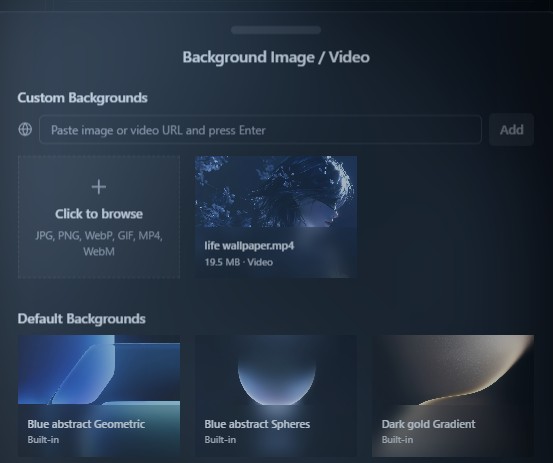
Options → General → Customize controls the main inspector look: theme, background media, and how it is displayed. You style the tool, not the site content.
Extension vs standalone
Fields (theme, file / URL, opacity, blur, position, scale) match. What differs is where file bytes go and whether a total quota applies.
| Extension (Chrome / Edge) | Standalone | |
|---|---|---|
| Where uploads live | Media copies in extension IndexedDB (separate stores for wallpaper and saved files). | Media goes into the app’s unified local store (central quota). |
| Size limit | No app-enforced “N MB for media”; real cap is IndexedDB / storage quota for the extension profile. | Hard 30 MB total for decorative media in standalone storage — saves are blocked if the new total would exceed (error like “Media limit exceeded”). |
| Usage meter | The X MB / 30 MB counter is not shown. | Under Saved Files, N.N MB / 30 MB. The bar is yellow from 70% and red from 90%. |
URL backgrounds do not count like uploaded files in local quota, but for offline predictability local files within quota are often simpler (in standalone respect 30 MB total).
Theme
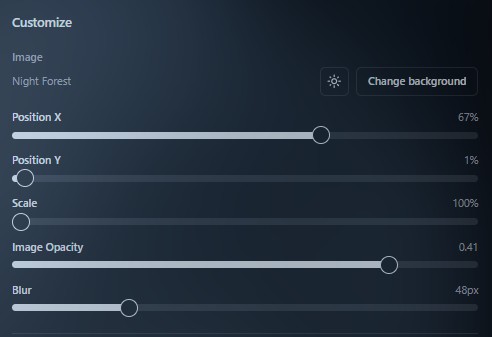
The icon button next to the current image name switches the inspector theme. The default is dark. The tooltip is Switch to light theme or Switch to dark theme.
Background (Image)
Image sets the panel background. The current name is shown next to Change background. With nothing chosen, that name is Night Forest.
- File — local asset via Browse or previously saved copies (extension: IndexedDB; standalone: unified 30 MB store — table above). Presets: Settings management.
- Link — URL to media.
Supported: still images, animated GIF, MP4 video backgrounds.
Background rendering
| Control | Role |
|---|---|
| Image Opacity | 0–0.50, step 0.01. Default 0.20, shown with two decimals. |
| Blur | 0–200 px. Default 34. |
| Position X / Position Y | 0–100%. Defaults 22 and 30. |
| Scale | 100–200%. Default 100. |
Combined, the sliders keep the background readable. There is no noise control.
Saved files
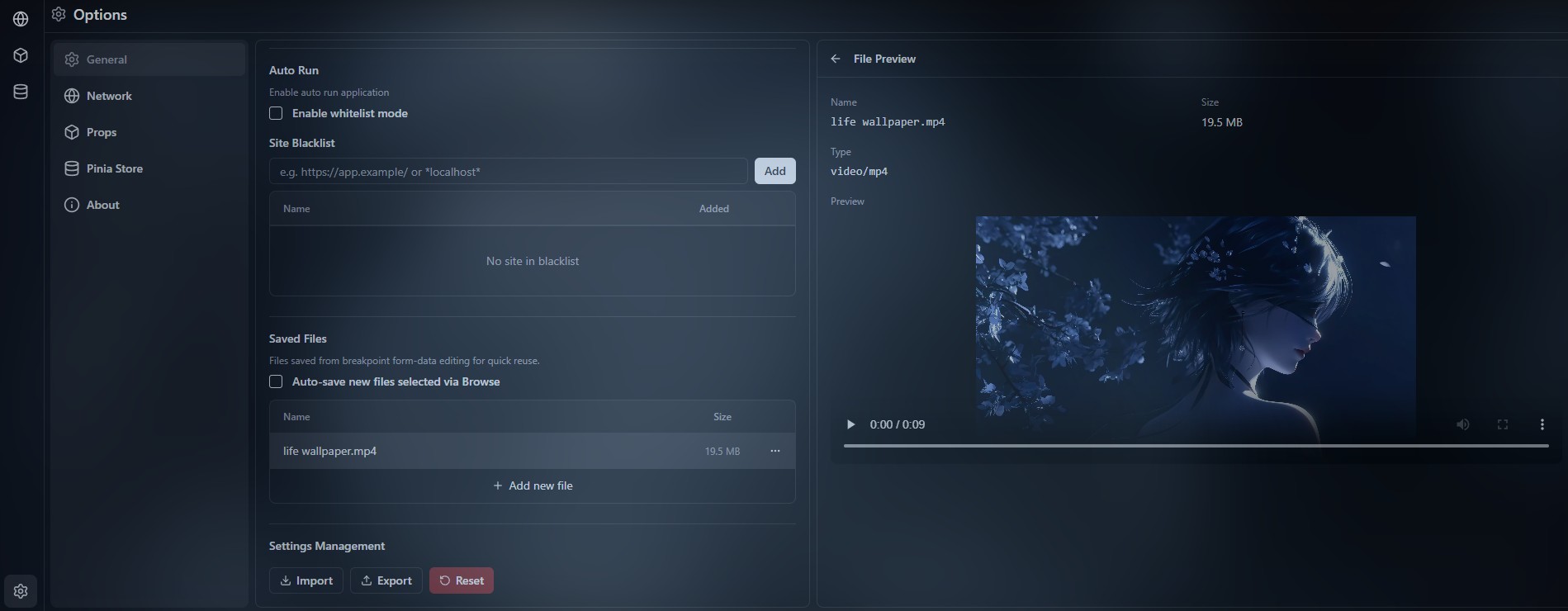
The Saved Files section on the General page keeps local media copies for reuse.
They are used in several places:
- picking a background file in Customize;
- File fields in Form-data at a Network breakpoint;
- anywhere else the inspector needs to re-select a file you already saved.
Extension vs standalone storage rules match the table above: same idea, different backing store and total capacity.
File list
The section text is Files saved from breakpoint form-data editing for quick reuse.
Columns are Name and Size. The row menu is Edit and Delete. Edit replaces that file. Clicking a row opens File Preview (name, size, type, and a preview for an image, audio, video, text, or PDF). An Office file shows its type, Open, and Download. Add new file sits under the rows and accepts several files. A file with the same name and size is skipped, with no message.
In the extension the table is Saved Files only. In standalone it lists background wallpapers first, then the breakpoint files. The usage bar above the table is standalone only.
Auto-save new files selected via Browse is off by default.
When the option is on, a file is written to Saved Files when:
- it was chosen via Browse;
- there is not already an entry with the same name + size pair.
This applies, for example, when editing Form-data at a Network breakpoint.
Use in Form-data
When you pick a file from the list in the Form-data editor, the draft stores a service reference of the form __fileId:….
When changes are applied, the injected script uses that id to attach the real file bytes to the request.
Details: Traffic interception.
See also
- Display modes
- JSON Mode — how JSON is shown and edited.
- Settings management