
Display modes
Options → General starts with Language. The default is English; Русский switches the inspector navigation, the Options sidebar, and this General page. Display Mode then chooses where the Vue Inspector UI lives relative to the page: Overlay on the page or DevTools tab inside the browser’s developer tools. The default is Overlay.
The rest of Options → General, in order: Customize, Search Parameters and Auto Refresh, Auto Run (extension only), saved files on the Customize page, Settings management. JSON uses one editor (JSON Mode). About is the next Options section: About.
DevTools mode requires the installed extension (Chrome / Edge). Standalone disables the radios and shows Display Mode is only available for the browser extension version. The inspector only runs as an overlay.
Choosing DevTools tab while the panel is the overlay shows Reload the page to apply changes. and Open DevTools (F12) to access the panel. Choosing Overlay while the panel is already a DevTools tab shows Reload the page to apply changes.
Overlay — dock, pill, and size
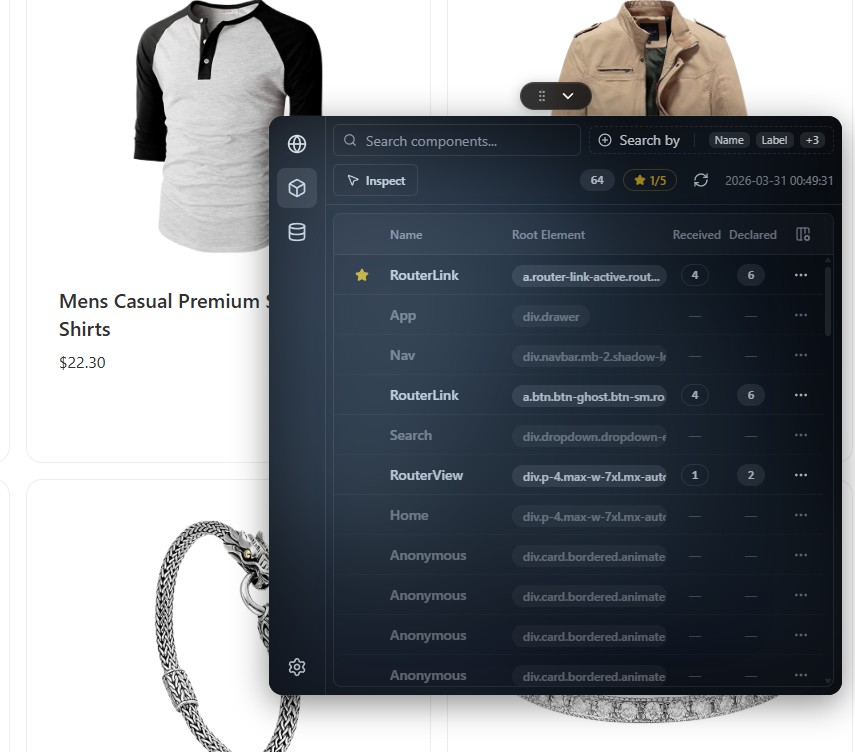
Overlay embeds the panel above the site in its own “window” in the tab.
The pill (compact handle with drag affordance and chevron) is the main control:
- Chevron expands/collapses inspector chrome.
- Drag handle moves the block: near window edges it snaps top/bottom/left/right; centered becomes a floating framed window.
Default first open: docked to the bottom — full-width strip with the site visible above (resize height). Classic bottom dock.
Resizing:
- Docked: grab the outer edge (for bottom dock, the top border) to change height (bottom/top dock) or width (left/right).
- Floating: corners and edges resize freely.
Position, dock side, and floating geometry persist between visits (within browser/extension limits).
Whether the pill shows on a site can also depend on Auto Run lists — see Auto run.
DevTools tab
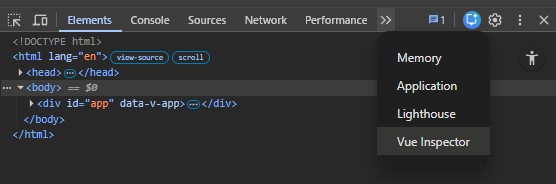
Extension only. The inspector opens as a separate tab inside native DevTools (F12 / Inspect), not as a floating overlay.
Useful if you keep tools next to Console/Network or prefer not to cover the page. Pill dragging applies to Overlay only; DevTools layout follows the browser panel.
After switching to DevTools tab, reload and open DevTools — you should see Vue Inspector among panel tabs.
Reload (F5): the inspector tab reconnects to this tab’s page context. No extra enable step.
Versus Overlay: while overlay is collapsed, some page-side flows may not get a full channel to the expanded panel — Breakpoint / Mock may need you to expand first. In DevTools mode the inspector is already an active DevTools surface, so Network interception works immediately after reload.
Network after F5: the request list clears and refills as the page reloads, but Network features (intercept, breakpoints, mocks) are ready from the start — no extra click to “wake” networking.
See also
- Auto run — when the overlay pill auto-shows
- Customize — theme and panel background
- Browser extension