
Auto run
Extension only (Chrome / Edge). The Auto Run block in Options → General is hidden in standalone: a bookmark has no background extension process to decide when to show the panel.
Auto Run controls when the overlay pill appears on sites in overlay mode. This is not the component blacklist on Props — here we only filter site origins (scheme, host, port). Under the title the text is Enable auto run application. The only checkbox is Enable whitelist mode. There is no switch that turns the lists off.
Basics
Rules inspect the page origin (scheme, host, port; path is ignored). The placeholder is e.g. https://app.example/ or *localhost*.
A full http or https URL is compared by origin, ignoring case. The path is dropped. A pattern that contains * is matched against the whole origin, ignoring case: * is any substring, and the pattern must cover the whole origin. A pattern with no * and no scheme must equal the whole origin, so localhost does not match http://localhost:5173. Use *localhost*.
Empty input and a pattern already in that list are ignored, with no message. Empty lists impose no restriction until you add rows (or enable whitelist mode, below).
The overlay still won’t inject on pages the extension treats as static without Vue (separate heuristic). Lists don’t bypass that — see the extension popup section.
Site Blacklist
Site Blacklist — origins/patterns where the pill must not auto-show.
- Add via the field and Add, or Enter. The columns are Name and Added. Added is the date only.
- An empty list says No site in blacklist.
- Click a row to open Site Blacklist Details. The menu is Edit and Delete.
- Edit uses the field Pattern (placeholder Origin pattern). Save is disabled while it is blank. The same pattern already on another row is ignored. Added in the card is the date and time. Back or Escape closes the card.
- If the current origin matches any blacklist row, auto-run overlay is off for that tab.
Blacklist can combine with whitelist: whitelist is evaluated first when active and non-empty.
Site Whitelist and “whitelist mode”
Enable whitelist mode shows Site Whitelist. The warning on that block is: When the whitelist is not empty, the application will only run when the page origin (scheme, host including www, port) matches a pattern.
- While the whitelist is empty, mode is effectively open — only blacklist (if any) applies.
- Once the whitelist has at least one row, auto overlay is only allowed on matching origins; everything else is denied before blacklist trims further.
- An empty list says No site in whitelist. A row opens Site Whitelist Details. Add, edit, and delete work like the blacklist. The same pattern in that list is ignored.
So a non-empty whitelist defines “where yes”, blacklist subtracts exceptions.
Extension popup — escape hatch
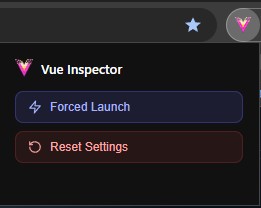
The extension icon popup exposes two actions (UI labels in English: Forced Launch, Reset Settings).
Forced Launch injects the inspector on the active tab, ignoring Auto Run lists and the static-site heuristic. Use when lists block all sites or Options is unreachable.
Reset Settings performs a full wipe of saved inspector settings (Auto Run, theming, favorites, etc.). Options → AI stays. Last resort if configuration locks you out — there is no undo without a backup export.
If you rely on a strict whitelist, keep at least one URL you use to open Options, or remember Forced Launch / Reset Settings.