
Breakpoints and mock responses
The Network tab and Options → Network provide two interception mechanisms:
- Breakpoint — pause an outgoing request before it hits the network, edit parameters, then continue;
- Mock response — return a crafted response without calling the server.
Both apply to fetch and XMLHttpRequest on the current page. WebSocket rows are observed only: breakpoint and mock rules do not apply to them.
On a narrow panel the list and the request details share one screen. Saving a breakpoint or mock, or leaving that form with the back button, closes the details. On a wide panel the details stay open.
You can suspend all breakpoint rules or all mock rules globally from the Network toolbar or via Enable breakpoint rules / Enable mock responses in Options → Network — rules remain saved but are not applied until re-enabled. See Working with requests.
General interception limits (page context, CORS, scope) are described in Working with requests.
Breakpoints
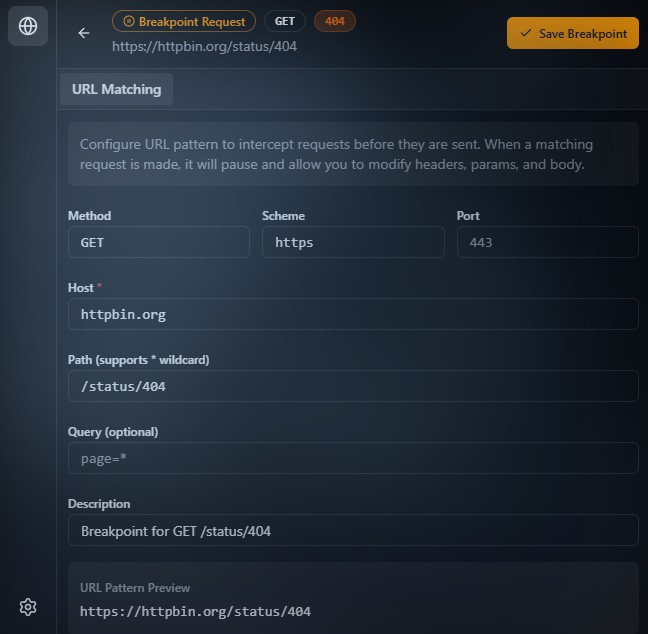
Purpose
A breakpoint pauses an outbound request before it is sent.
When the rule matches (how a rule matches):
- the request is held;
- the UI lets you edit parameters;
- Apply sends the request with your changes;
- Back or Escape releases the pause and sends the original request. The call is not aborted.
Interception happens after the app built the request but before native send.
What you can change
Before continuing you can edit:
- HTTP method;
- URL (scheme, host, path, query);
- headers;
- body.
After Apply the request goes out in the modified form.
Request body: raw and form-data (breakpoint)
For the paused request, the body editor can use Raw (single text area) or Form-data (rows analogous to the read-only Network details table).
Form-data mode
In Form-data mode, each row contains:
- a key;
- a value type (Text or File);
- the value.
For File rows, Browse lets you pick a file from disk. The chosen file is added to the draft, typically as a data: URI.
File sources for File fields
For File rows, the dropdown lists:
- Original — restore the file that was already part of this request (equivalent to the original
(binary)for as long as the current pause still has the originalFormData); - Saved Files entries under Options → General;
- wallpapers (background media) from Customize — same shared media store as panel styling.
Auto-saving files selected via Browse
Auto-save new files selected via Browse (Options → General → Saved Files) controls whether files picked in this editor are auto-saved.
When the option is on:
- the file is copied to Saved Files;
- that happens only if there is not already an entry with the same name + size pair.
Storage limits follow Customize:
- the extension uses IndexedDB;
- standalone enforces a 30 MB cap.
How data is applied after you continue
After you continue, the injected script builds a new FormData object:
- text values are appended as normal fields;
data:values are turned into file parts;(binary)restores the original File from the captured request for as long as that source data is still available.
File restoration limits
If the value is still:
- a
blob:URL; - or a
__fileId:… reference,
the page cannot recover the file contents on its own.
In that case an empty placeholder is sent for that part and the console emits a warning.
To avoid that, pick the file again with Browse or select a saved file from the list.
Where to configure
- Network — Breakpoint Request or Rewrite Breakpoint on a captured request.
- Options → Network → Breakpoints Requests — manage the rule list.
- Network toolbar (breakpoint icon) or Enable breakpoint rules in Options — turn all breakpoint handling on or off without deleting rules (see Working with requests).
Breakpoints Requests in Options
The table has no Add control. An empty list says No breakpoints configured. Set breakpoints from the Network tab.
| Column | What it shows |
|---|---|
| Description | The rule note, or the URL pattern when the note is empty. |
| Status | Active or Off. |
Active rows are listed first. An Off row is dimmed and is not counted by the bp chip. The row menu (right click or ⋮) is Edit, Enable / Disable and Delete. Disable sets the row to Off without deleting it. A rule pauses traffic only when that row is Active and Enable breakpoint rules is on. How a pattern matches is in How a rule matches.
A click opens Breakpoint Details: the URL pattern, the method (All when it is empty), Active or Disabled, scheme, host, port, path, query and the time the rule was created. Edit on that card, or Edit in the row menu, opens the same form as on the Network tab. The panel ring is amber. Save Breakpoint writes the rule back and leaves it Active or Off. Back or Escape closes the form without saving. Below 1000 px the card covers the settings list until you go back.
With nothing selected the panel says Select an item to see details. If the rule was removed while the card is open, it says Item no longer exists.
How a rule matches
WebSocket rows never match. The first enabled rule in the active list that fits is the one applied. Mocks use the same URL rules.
| Field | Match |
|---|---|
| Scheme | Compared with the request scheme when the field is set, including case (the form fills https or http from the URL). The colored bar in the list ignores scheme case; the pause itself does not. |
| Host | Required to save the form. Exact hostname; * is a wildcard (*.example.com). Case is ignored. An empty stored host matches any host. |
| Port | Exact when set. A URL with no port is treated as 443 for https and 80 for http. |
| Path | Prefix of the pathname when set, so /api matches /api/users. * is a wildcard. Case is ignored. |
| Query | Optional. The query string without ? must contain the pattern. * is a wildcard. A request with no query does not match a query pattern. |
| Method | Empty matches every method (the breakpoint field placeholder is All). A filled method must match; case is ignored. |
A rule saved from Network pauses before the request is sent.
Behavior
When a request hits an active breakpoint rule the UI focuses editing:
- the breakpoint card opens on Request (a URL tab edits method, scheme, host and path);
- the view may switch to Network;
- a collapsed inspector iframe expands automatically.
The details frame uses an amber ring while rules are enabled, and a muted ring while breakpoint rules are suspended.
Until you press Apply or leave with Back / Escape, the request stays paused.
Mock responses
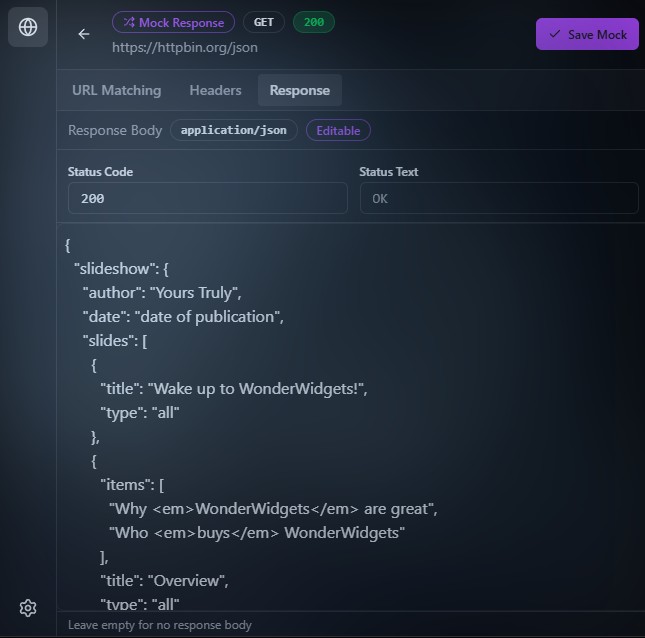
Purpose
Mock fully replaces a network call with a local response.
When a rule matches:
- no server round-trip;
- a synthetic response is built;
- the page receives it like a normal HTTP response.
What a mock can set
- status and statusText;
- headers;
- body;
- delay before resolving.
Where to configure
- Network — Mock Response or Rewrite Mock on a request row. URL matching is the same as for breakpoints. An empty method matches every method. Host is required. Status must be from 100 to 599. The form opens on Response and also has URL Matching and Headers.
- Options → Network → Mocks Responses — manage rules.
- Network toolbar (mock icon) or Enable mock responses in Options — turn all mock handling on or off without deleting rules (see Working with requests).
Mocks Responses in Options
The table has no Add control. An empty list says No mocks configured. Click "Mock Response" on any request in the Network tab.
| Column | What it shows |
|---|---|
| Description | The rule note, or the URL pattern when the note is empty. An empty scheme, host or path is shown as *. |
| Code | Status number. 2xx is green, 4xx orange, 5xx red. |
| Delay | Nms, or - when there is no delay. |
| Status | Active or Off. |
Active rows are listed first. An Off row is dimmed and is not counted by the mock chip. The row menu is Edit, Enable / Disable and Delete. A mock runs only when the row is Active and Enable mock responses is on.
A click opens Mock Details: the URL pattern, status and status text, delay (None when unset), state Active or Disabled, headers, body ((empty) when the body is an empty string), description and the time the rule was created. Edit opens the same mock form as on the Network tab. The panel ring is purple. Saving keeps the rule Active or Off. Back or Escape closes the form without saving. Below 1000 px the card covers the settings list.
Behavior
If mock matches:
- the real request is not sent;
- breakpoint does not apply for that call.
If the synthetic response cannot be built, the real request is sent and the page console logs the error. The details frame uses a purple ring while the mock form is open and rules are enabled, and a muted ring while mock rules are suspended.
Order of evaluation:
- mock first;
- if no mock — breakpoint;
- otherwise normal network.
Mock wins over breakpoint.
Breakpoint vs mock
| Mechanism | Network round-trip | Can change request | Can change response |
|---|---|---|---|
| Breakpoint | Yes | Yes | No |
| Mock response | No | No | Yes |
Limits
Both work only for:
- fetch
- XMLHttpRequest
Not intercepted:
<img>,<script>,<link>loads;- service workers outside this layer;
- native browser calls outside page JS.
OPTIONS (preflight) requests are not part of interception.
Compared to Charles Proxy
Charles (and similar system / external proxies: Fiddler, mitmproxy, …) sits between client and server at the OS or app level:
- sees traffic beyond the browser (mobile apps, CLI, other tools if proxied);
- HTTPS typically needs a trusted root and SSL Proxying (TLS termination);
- Breakpoints and Map Local / Remote apply to all matching connections on that channel.
Vue Inspector runs inside the browser tab: it patches fetch and XMLHttpRequest.
| Aspect | Charles (typical) | Vue Inspector |
|---|---|---|
| Level | Proxy / out-of-process | JS in the page |
| Scope | Many clients, HTTP(S) through proxy | This document only: fetch and XHR |
| HTTPS | Custom trust, TLS break | No extra TLS break — the app already sees responses in JS |
| SW / native requests | Often visible on the path | Not covered here |
| SPA convenience | Proxy + certs setup | Enable rules in the inspector for the current site |
In intent, Inspector breakpoints/mocks resemble Charles (pause / fake a response); in placement it is a page-level devtool, not a network proxy.